Figure preparation tools
Figure DPI Calculator
The Figure DPI Calculator shows how many pixels you need at a chosen print width. Enter raster dimensions and a target resolution to compare the current file with your intended output.
Figure DPI Calculator: resolution check
Free · no account or credits · calculations stay in this browser
Effective resolution
300 PPI
Meets the selected resolution target at this width.
- Print height at this aspect ratio
- 5.333 in
- Required pixels at the target
- 2400 × 1600 px
- Maximum width at the target
- 8 in
PPI = pixel width ÷ print width in inches. This does not edit metadata, add pixels, check color profiles, detect manipulation or certify acceptance. Follow the journal guidelines for your figure type.
SEE ACADRAW IN ACTION
Science drawing, from idea to editable figure
Create a science illustration with AI. Refine drawings, build editable diagrams, and convert images to SVG.
Demos play as you scroll into view. Choose a feature to explore.
Trusted by students & researchers from 480+ universities
A global community spanning 60+ countries and regions, from QS top-ranked universities to leading research institutes























University logos belong to their respective institutions and are shown solely to illustrate our user community. They do not imply any partnership or endorsement.
Tool overview
Explore the use cases, workflow, and key things to know.
Free local tool
No account or credits are required for this tool.
Useful output
Download a text resolution report.
Clear scope
Numeric calculation without editing your source image.
Concept reference
Resolution is a relationship, not extra detail
The Figure DPI Calculator uses pixel width divided by print width in inches. The result is effective PPI; increasing a metadata number alone cannot create new image detail.
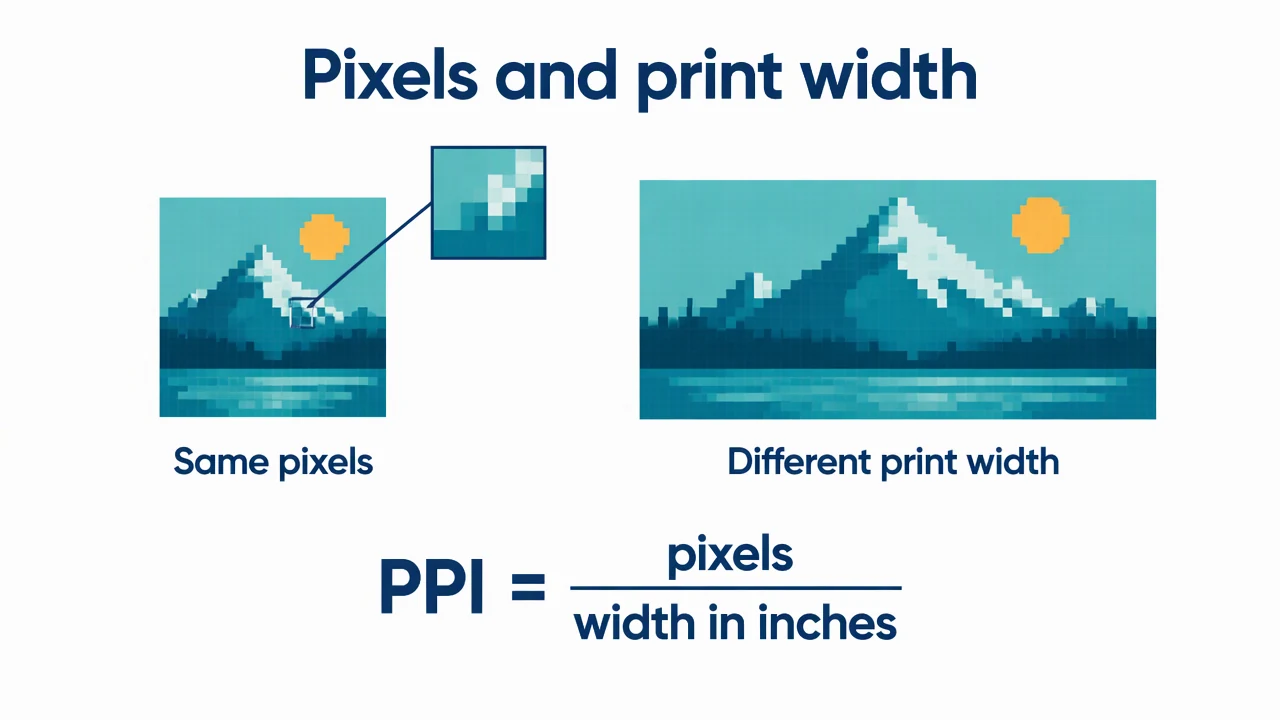
Figure DPI Calculator: reference key
Use the reference and definitions together. On a small screen, scroll the table horizontally.
| Element | Meaning | Review check |
|---|---|---|
| Pixel width | Horizontal samples in the image | Use the original export dimensions. |
| Print width | Physical width on the page | Convert centimeters or millimeters to inches before dividing. |
| Effective PPI | Pixels ÷ print width in inches | The result changes as the intended print size changes. |
| Required pixels | Print inches × target PPI | Round up so the calculated requirement is met. |
| Maximum print width | Pixel width ÷ target PPI | This is a resolution limit, not a guarantee of readability. |
Figure DPI Calculator: understand the result
The Figure DPI Calculator shows how many pixels you need at a chosen print width. Enter raster dimensions and a target resolution to compare the current file with your intended output.
Use the equation in the correct direction
The Figure DPI Calculator divides the horizontal pixel count by the print width in inches. It also preserves the input aspect ratio when deriving print height and the required vertical pixel count.
Keep physical size during unit conversion
Switching from inches to centimeters or millimeters preserves the physical width. It changes the displayed unit, not the amount of image information. Always check that the intended placement width matches the journal layout.
Distinguish PPI from printer DPI
PPI describes raster samples per printed inch. Printer DPI describes ink or toner dots and is a separate device property. Author instructions often use DPI loosely for image resolution; this calculator reports the effective PPI.
Common mistakes to avoid
Using centimeters as inches
A 10 cm wide figure is not 10 inches wide; convert units explicitly.
Assuming upsampling restores detail
Interpolation can add pixels without recovering the original information.
Applying one threshold to every figure
Line art and photographs can have different journal requirements.
Figure DPI Calculator: use the tool
This tool runs locally without an account or credits. Review the output before printing, teaching or submission.
Use the controls above; no AI generation mode is needed for the calculation or layout.
- 1
Enter the source dimensions
Type the raster width and height into the Figure DPI Calculator.
- 2
Choose physical width
Use the placement width and units required for your manuscript.
- 3
Compare the target
Check the result and return to the original export if more real detail is needed.
Worked example for the figure dpi calculator
2400 px ÷ 8 in = 300 PPI. The same width is 20.32 cm or 203.2 mm. A 3000 px image reaches 10 inches at 300 PPI.
Open Figure DPI CalculatorFigure DPI Calculator: common questions
What does the Figure DPI Calculator calculate?
It calculates effective PPI, the print height at the same aspect ratio, required pixel dimensions and maximum width at your target.
Does the Figure DPI Calculator change my file?
No. It performs numeric calculations and exports a text summary; it does not resize or edit an image.
Is 300 PPI always enough?
No. Follow the current author instructions for the figure type, especially line art and mixed content.
Does this tool require credits?
No. The calculator runs locally without an account or credits.
Sources and editorial notes
Prepared by the AcaDraw product team. Source and diagram check: . This is a simplified educational model; independent expert review has not been completed. AI-generated drafts need checking against reliable references.
Read the figure dpi calculator guide
The Figure DPI Calculator uses pixel width divided by print width in inches. The result is effective PPI; increasing a metadata number alone cannot create new image detail.
Figure DPI Explained: Pixel Count, Print Width, and Real Detail