Figure preparation tools
Figure Checker
Use the Figure Checker to inspect a PNG, JPEG or WebP locally. Choose its intended print width and resolution target to check whether the available pixels are sufficient.
Figure Checker: resolution check
Free · no account or credits · calculations stay in this browser
Choose an image to read its dimensions and calculate its resolution.
PPI = pixel width ÷ print width in inches. This does not edit metadata, add pixels, check color profiles, detect manipulation or certify acceptance. Follow the journal guidelines for your figure type.
SEE ACADRAW IN ACTION
Science drawing, from idea to editable figure
Create a science illustration with AI. Refine drawings, build editable diagrams, and convert images to SVG.
Demos play as you scroll into view. Choose a feature to explore.
Trusted by students & researchers from 480+ universities
A global community spanning 60+ countries and regions, from QS top-ranked universities to leading research institutes























University logos belong to their respective institutions and are shown solely to illustrate our user community. They do not imply any partnership or endorsement.
Tool overview
Explore the use cases, workflow, and key things to know.
Free local tool
No account or credits are required for this tool.
Useful output
Download a text resolution report.
Clear scope
Your selected files are read in the browser; no server upload.
Concept reference
Figure preflight: pixels, size, and submission rules
The Figure Checker connects three different questions: what is in the file, how large it will be printed, and what the chosen journal requires. Its resolution check does not certify image integrity or scientific content.
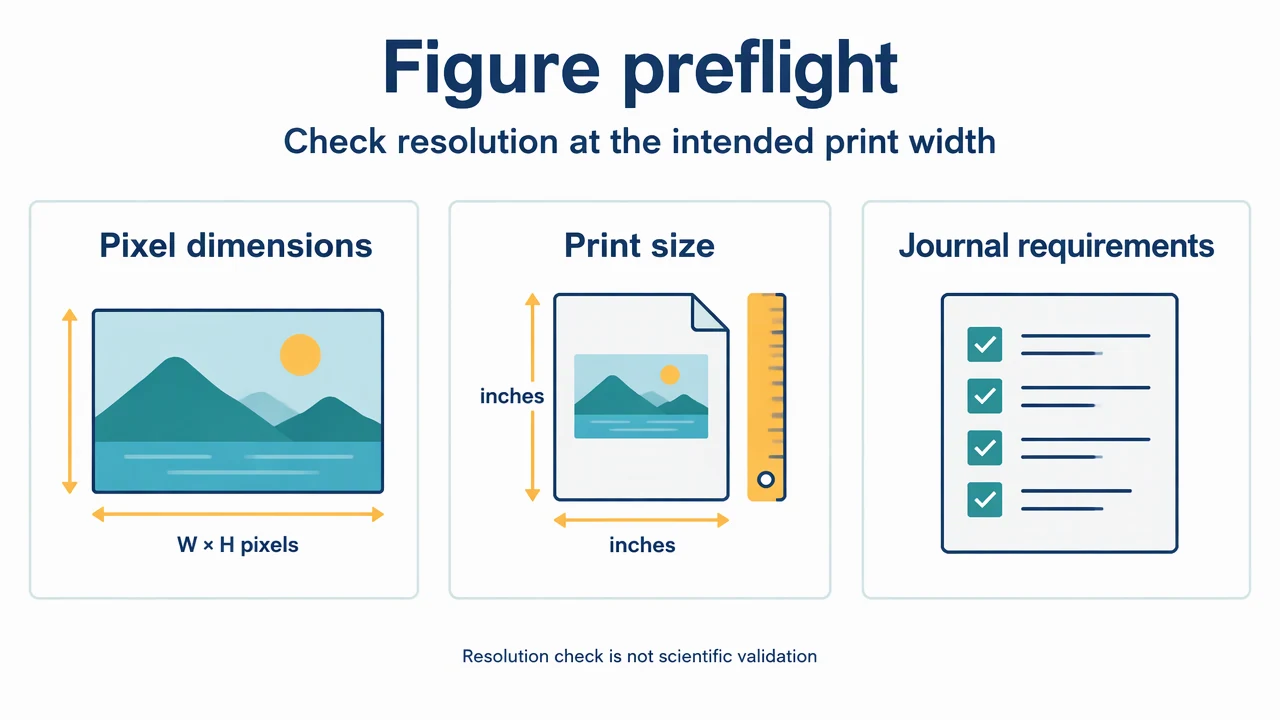
Figure Checker: reference key
Use the reference and definitions together. On a small screen, scroll the table horizontally.
| Element | Meaning | Review check |
|---|---|---|
| Pixel dimensions | Width × height in pixels | Read from the uploaded raster; changing metadata does not add pixels. |
| File format | PNG, JPEG or WebP | Confirm the journal accepts that format; TIFF/PDF/SVG inspection is not supported here. |
| Print width | Intended physical width | The same raster has a different effective resolution at a different width. |
| Resolution target | Your chosen PPI threshold | Use the journal requirement rather than assuming 300 PPI fits every figure. |
| Preflight report | Downloadable text summary | Contains your inputs and the resolution result, not an acceptance certificate. |
Figure Checker: understand the result
Use the Figure Checker to inspect a PNG, JPEG or WebP locally. Choose its intended print width and resolution target to check whether the available pixels are sufficient.
Separate file properties from print intent
The Figure Checker reads the decoded raster dimensions, signature-based format and file size. It then combines those facts with your intended print width. It does not rely on an embedded DPI tag to decide whether there are enough pixels.
Choose the threshold for your figure type
A journal may ask for different resolutions for photographs, line art and mixed figures. Set the requested threshold from the current author guidelines. A pass only means the pixel count meets that threshold at the width you entered.
Keep content review separate
Check labels, permissions, source-image retention and any permitted adjustments yourself. This browser tool does not detect image manipulation, validate a scale bar, inspect color profiles or guarantee journal acceptance.
Common mistakes to avoid
Treating a green result as submission approval
A resolution pass does not check every journal rule or verify the scientific claim.
Entering the wrong print width
Checking a small thumbnail width can hide insufficient resolution at the intended publication size.
Changing a DPI tag to repair a small image
Metadata edits do not restore detail. Return to the original export or reduce the print size.
Figure Checker: use the tool
This tool runs locally without an account or credits. Review the output before printing, teaching or submission.
Use the controls above; no AI generation mode is needed for the calculation or layout.
- 1
Select a raster
Upload one supported file to the Figure Checker.
- 2
Set the print intent
Enter width, units and the resolution target from your author instructions.
- 3
Review and save
Check the effective PPI and download the report before reviewing remaining journal requirements.
Worked example for the figure checker
A 2400 × 1600 px image printed at 8 inches wide has 300 PPI. At 12 inches wide, the same file has 200 PPI. Neither calculation changes the source image.
Open Figure CheckerFigure Checker: common questions
Is the Figure Checker free?
Yes. The local checks and text report require no account or credits.
Does the Figure Checker upload my file?
No. The inspection reads your selected file in the browser and does not send its contents to a server.
Does it read embedded DPI metadata?
No. It calculates effective PPI from decoded pixel dimensions and your intended print width.
Can it check TIFF, PDF or scientific integrity?
No. This version supports static PNG, JPEG and WebP, up to 15 MB and 24 megapixels per image. It does not audit manipulation, scientific accuracy or acceptance.
Sources and editorial notes
Prepared by the AcaDraw product team. Source and diagram check: . This is a simplified educational model; independent expert review has not been completed. AI-generated drafts need checking against reliable references.
Read the figure checker guide
The Figure Checker connects three different questions: what is in the file, how large it will be printed, and what the chosen journal requires. Its resolution check does not certify image integrity or scientific content.
Figure Checks Before Submission: Pixels, Print Size, and Format