Remove Text from Image with AI
Remove text from an image by uploading it and describing the unwanted words or label region. Use this prompt-based workflow for your own illustrations and presentation graphics, then compare the revision against the original.
SEE ACADRAW IN ACTION
Science drawing, from idea to editable figure
Create a science illustration with AI. Refine drawings, build editable diagrams, and convert images to SVG.
Demos play as you scroll into view. Choose a feature to explore.
Trusted by students & researchers from 480+ universities
A global community spanning 60+ countries and regions, from QS top-ranked universities to leading research institutes





















University logos belong to their respective institutions and are shown solely to illustrate our user community. They do not imply any partnership or endorsement.
Tool overview
Explore the use cases, workflow, and key things to know.
Use your own image
Upload an illustration through the existing Science Drawing control.
Describe a focused edit
Quote the unwanted words and identify their location in the image.
Review the AI revision
Compare the result with an untouched original before exporting.
Illustrative editing example
Remove Text from Image: labeled teaching reference
This remove text from image example uses a synthetic cell illustration. An unwanted margin label was added and an AI image edit removed it. This is one original editing example, not an output benchmark, real microscopy or a guarantee of pixel-perfect recovery.
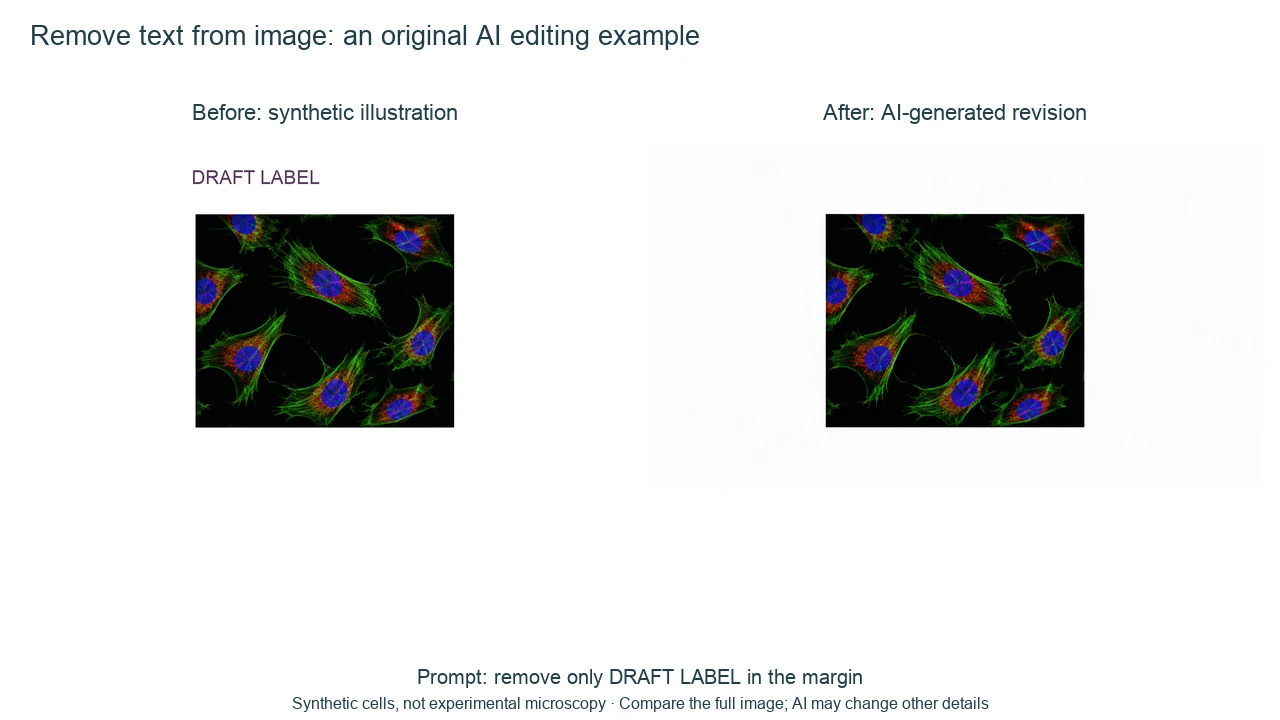
Remove Text from Image label key
Choose a precise request and compare the result with your original image.
| Label or stage | Position or relationship | Meaning and drawing check |
|---|---|---|
| Margin caption | Text outside the illustration | Specify the exact phrase and position, and ask to retain the rest of the figure. |
| Leader line and label | Text connected to a feature | Say whether only words or the pointer should also be removed. |
| Text over artwork | Letters covering a structure | AI must reconstruct hidden pixels; fine detail may change and cannot be recovered reliably from the flattened image. |
| Editable original | Text on a separate layer | Delete the text layer in its source editor where possible; this preserves the underlying artwork. |
| Scientific labels | Units, scale bars or identifiers | Keep required context. Do not erase information that changes interpretation or provenance. |
| Review | Original and AI revision side by side | Inspect nearby edges, colors and structures before export. |
Read the remove text from image in context
To remove text from an image, define the exact edit and how you will check it. A smooth-looking replacement alone does not establish that other details were preserved.
Upload a reference image
The remove text from image workflow uses the existing Science Drawing image upload. A blank text-only request cannot identify which pixels you mean.
Describe the region precisely
Quote the unwanted words, name their position and distinguish text from any pointer you want to keep.
Compare before using
AI reconstruction may change more than the words. Check both the target region and the rest of the illustration.
Common remove text from image mistakes
Expecting exact hidden-pixel recovery
A flattened image does not contain the covered detail. AI removal synthesizes a plausible replacement.
Removing meaningful scientific context
Do not remove units, scale bars, attribution or information needed to interpret a figure.
Treating a synthetic demo as a measured result
The example uses synthetic cells and an actual AI revision. It is not experimental evidence or a guarantee for every editing model.
Remove text from an image in three steps
Upload your image in Science Drawing mode and describe the text to remove. AI revisions require an account and available credits. See current pricing.
Use Science Drawing for an uploaded raster image. Editable Diagram creates a new schematic; it is not a pixel-preserving eraser. AI edits may change surrounding detail, so compare the result with the original.
- 1
Upload your illustration
Choose Science Drawing and add the image using the existing upload control. Keep an untouched original.
- 2
Name the words and location
Quote the text, describe its region and specify whether the pointer should remain.
- 3
Compare the revision
Inspect the target region and surrounding artwork. Repeat with a narrower request or use the layered source if preservation matters.
A prompt you can adapt
Remove only the unwanted text "DRAFT LABEL" in the upper margin of my uploaded illustration. Keep the illustration, colors, edges and other labels unchanged as far as possible. Do not invent scientific detail. I will compare the revision with the original before using it.
Use this prompt in the editorRemove text from image FAQ
How do I remove text from an image?
Upload the image in Science Drawing mode, describe the exact words and their location, then generate a revision and compare it with the original.
Is this a brush-based eraser?
No. This page uses AcaDraw’s existing uploaded-image and text-prompt workflow. There is no new automatic OCR or local eraser tool.
Will all other pixels stay identical?
No guarantee. AI editing reconstructs an output and can change nearby or distant details. Use a layered source file when precise preservation is required.
Can it recover the true image behind text?
No. Hidden pixels are absent in a flattened image. AI can synthesize a plausible region, not prove what was originally covered.
Should I use it on raw research images?
Preserve raw experimental data. Do not use generative reconstruction to modify scientific evidence or remove information that affects interpretation. Use the appropriate source-editing workflow and journal rules.
Can I remove a pointer too?
Describe whether to remove words only, a leader line, or both. Check that nearby structures and retained labels are unchanged.
Does text removal cost credits?
It uses the current image revision workflow, which requires an account and available credits. See pricing for the current model and resolution costs.
Workflow notes and references
Prepared by the AcaDraw product team. Workflow and example check: . The example is synthetic and is not a measured experiment. AI edits are reconstructed outputs and may change nearby details.
Remove an unwanted label from your own illustration
Upload an illustration, describe the exact text region and review the revision beside the original.
Remove Text from an Image: Clean Labels Without Losing Context